iCloud sync issues
How to fix iCloud sync problems between iPhone, iPad, and Mac.
These steps work for all our apps.
Quick checklist
- Is iCloud sync ON in the app? (on all devices)
- Is the app's switch ON in Settings > iCloud?
- Are you signed in with the same Apple Account?
- Do you have enough iCloud storage?
- Is Low Power Mode off?
- Is your internet connection stable?
- Are your OS and app up to date?
Step-by-step guide
Turn on iCloud sync in the app
Turn on iCloud sync on all devices you want to sync.
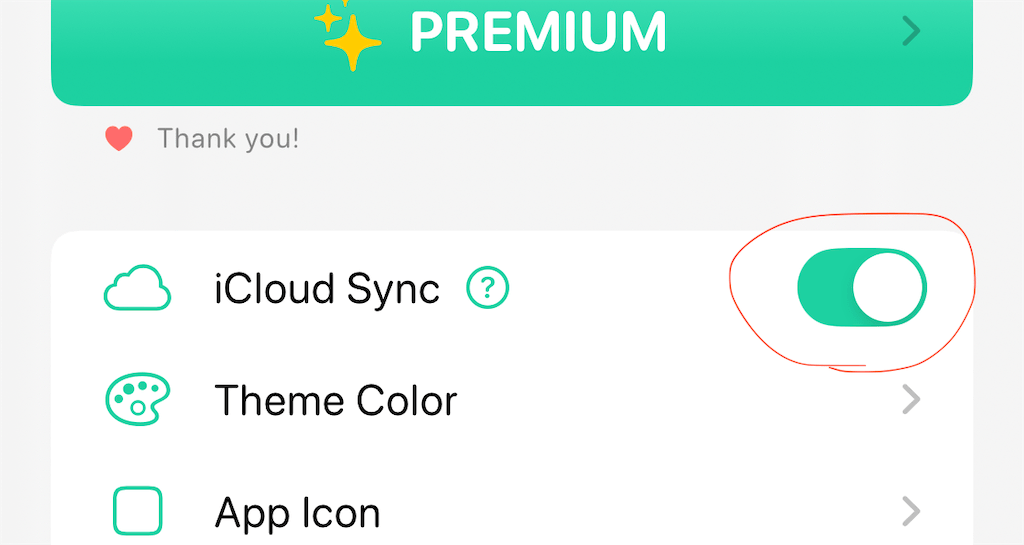
For most of our apps: Go to Settings > iCloud sync and turn it ON.

App-specific help pages:
ToDo
Accounting
Check iCloud settings
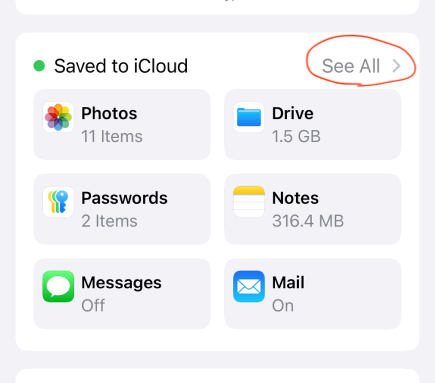
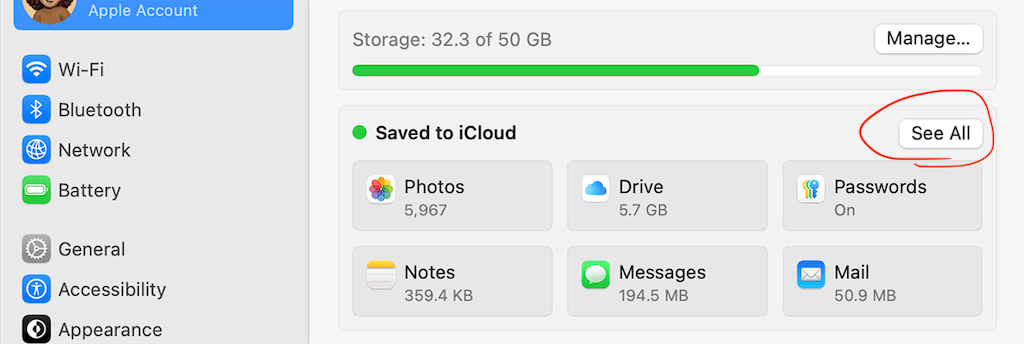
On iPhone, iPad, and Mac: Go to Settings > [Your Name] > iCloud > See All.
Scroll down and make sure the app's switch is ON.
Check this on all devices. The app won't sync if this is OFF.
See also:
Apple Support page
Check your Apple Account
Make sure you're signed in with the same Apple Account on all devices.
Different accounts (like work and personal) don't sync with each other.
Check iCloud storage
You need enough free space in iCloud for sync to work.
Go to Settings > [Your Name] > iCloud to check your storage.
Turn off Low Power Mode
Sync may not work when battery is low or Low Power Mode is on.
Go to Settings > Battery > Low Power Mode and turn it OFF.
Check internet connection
Make sure you have a stable internet connection.
VPN may also affect sync.
Update your software
Update the app to the latest version.
Also update to the latest iOS, iPadOS, or macOS.
Still having problems?
Restart your devices
Restart your iPhone, iPad, and Mac. This often fixes sync issues.
About sync timing
iCloud doesn't always sync instantly. It may take a few minutes.
iOS syncs data when it's best for battery and performance.
To force sync: Close and open the app a few times on all devices.
Check iCloud status
iCloud may be having problems.
Check System Status.